
Hosts
Audience: Captains, hosts · Who can do this: Anyone who can edit the event Where in the app:
/manage-event/[id]→ Details tab → Hosts (between Chapter and Event image)
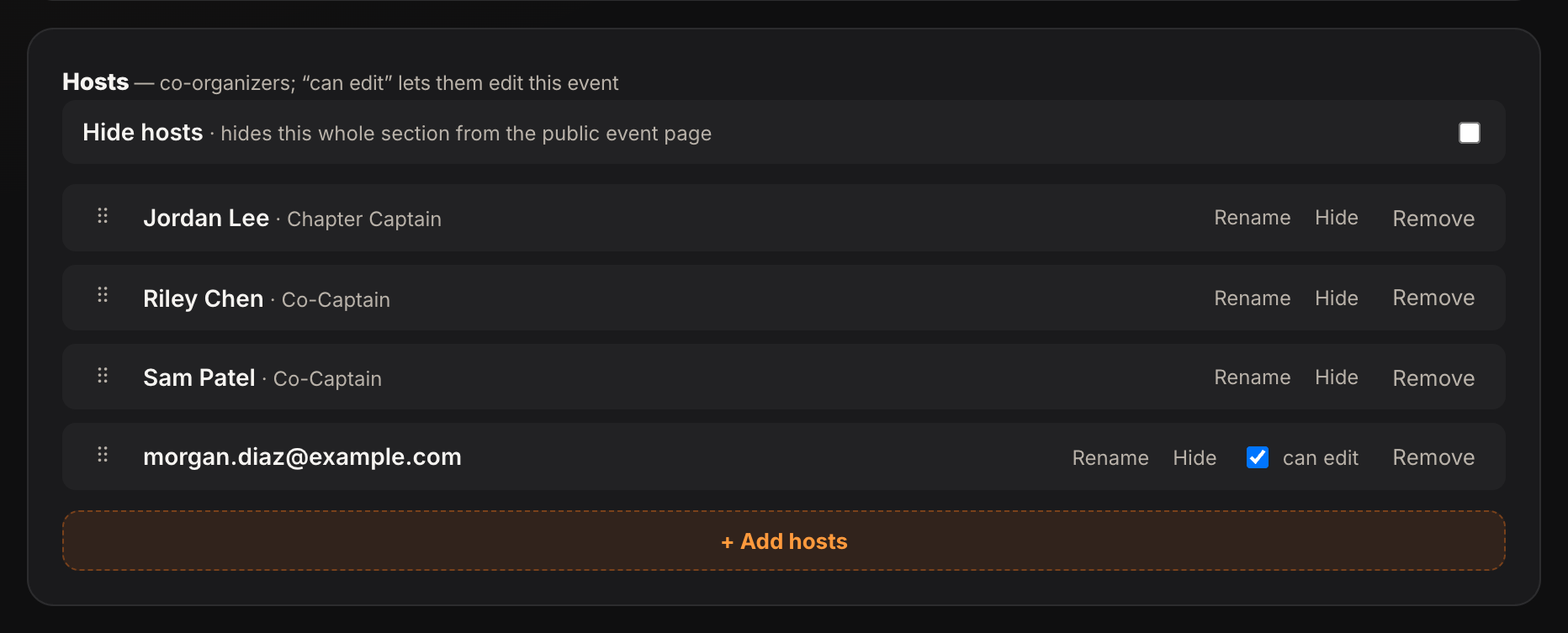
Add hosts, give a host edit access, set the order hosts appear in, and show, hide or remove hosts and captains on this event's page.
Who can change the Hosts section
Anyone who can edit the event can change it. That means:
- the event's creator,
- an active captain or co-captain of its chapter,
- a host with can edit, and
- an admin.
They can:
- hide the whole Hosts section on the event page,
- drag hosts into a new order,
- show, hide or remove individual hosts and captains, and
- add hosts.
These changes apply to this event only. They don't change anyone's role on the chapter.
Where the hosts come from
When someone creates an event under a chapter, the event's Hosts section starts as a copy of that chapter's captains, as the chapter shows them at that moment:
- Order. The event lists captains in the same order as the chapter's Team card and public chapter page.
- Hidden captains. A captain hidden on the chapter page starts hidden on the event.
- Co-captains. They are copied too. The event page labels each one Chapter Captain or Co-Captain.
Hosts added in the create form come after the copied captains.
From then on the event owns its Hosts section. Changing the chapter's order, hiding a captain there, or adding a new captain does not change an event that already exists. To change an event's Hosts, use Manage event.
Older events
Events created before this rule keep the order they always had: the hosts added to the event first, then the chapter's current captains in the order they joined the chapter. The Manage page and the public event page list the same people in that same order, and every row has a grip.
Until someone changes the list, an older event keeps following the chapter: a new captain appears on it, and a captain who leaves the chapter drops off it.
The first time an editor drags a row, hides someone, shows them again, removes them, adds a host, renames a host or changes a host's edit access, the event becomes editable. The site saves the list exactly as it is on screen: the same people, the same hidden or removed state, in the order you see, so no row moves when the controls start working. Your change is then applied on top. From then on the event is like a new one, and later changes to the chapter's team do not reach it. The people listed never change by themselves. Only an edit on the Manage page changes who is listed.
Steps
Change the order of hosts
- Open the event's Manage event page.
- Find the Hosts section, between Chapter and Event image.
- Put the pointer on the ⠿ grip at the left of a host's row.
- Drag the row up or down. Drop it where you want it.
The list greys out and says Saving new order… while the site saves. If the save fails, the site puts the rows back in their old order and shows an error. The event page shows hosts in the order you set.
Show, hide or remove a host
- Open Manage event and find the Hosts section.
- On the host's row, click Hide to take them off the public page. They stay in the list. Click Show to put them back.
- Click Remove to take them off the page and move them under Removed from this event. Click Restore there to bring them back.
Neither action changes anyone's role on the chapter.
Hide the whole Hosts section
- Open Manage event and find the Hosts section.
- Select Hide hosts.
The event page then shows no Hosts section. The list stays here, under Hidden on the public page.
Add a host
- Open Manage event and find the Hosts section.
- Click + Add hosts.
- Enter an email address, or leave it blank and enter a display name for a host with no email, such as an organization.
- Select Can edit this event to let the host edit the event.
- Click Add.
A new host goes to the end of the list. Drag the row to move it.
Good to know
- A captain who is also listed as a host on an older event appears once, as the host.
- A copied captain keeps their chapter role. Hiding or removing them on an event never changes the chapter.
- A captain can edit any event in their chapter, so the can edit box does not show on a copied captain's row.
- Moving an event to another chapter does not change its hosts. The one exception is an older event nobody has edited yet: it follows the captains of its new chapter until the first edit.