
Manage an event
Audience: Captains, co-captains, hosts · Who can do this: the event's creator, a captain or co-captain of its chapter, a host with edit access, or an admin Where in the app: Manage Event on your dashboard's My Events card, or the page you see after you submit an event (
/manage-event/[id])
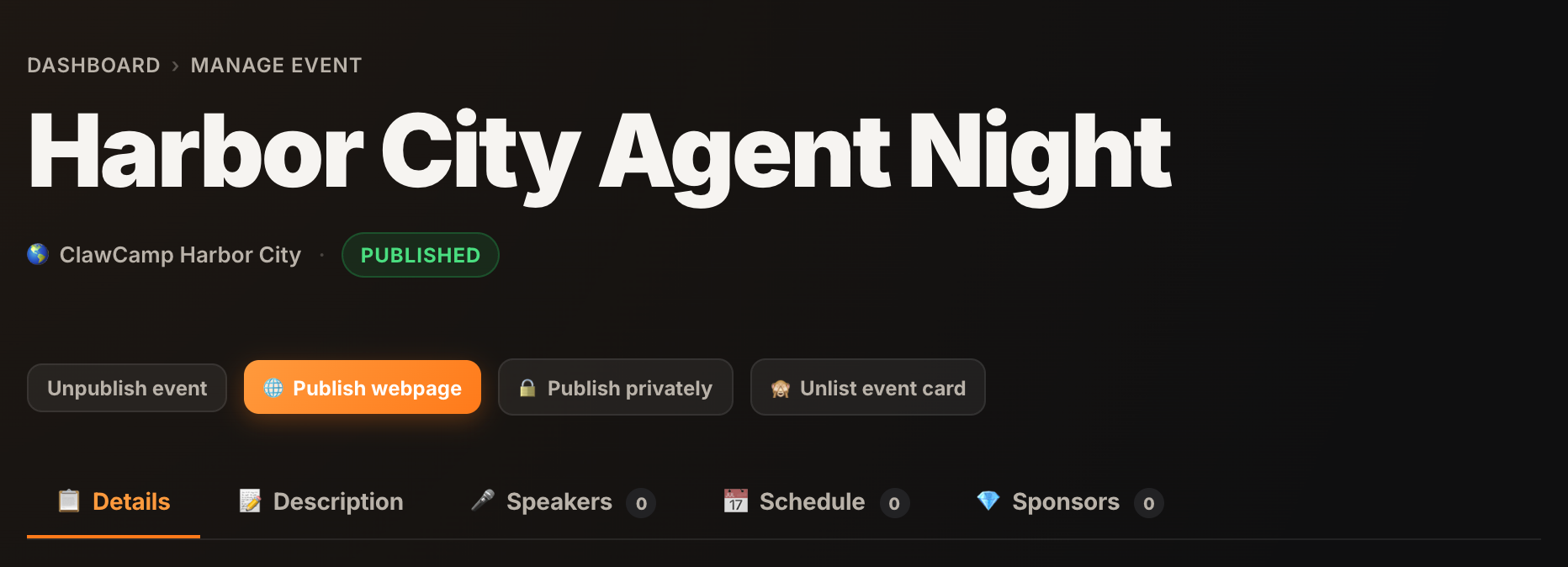
The manage page is where you change an event after you create it. It has five tabs: 📋 Details, 📝 Description, 🎤 Speakers, 📅 Schedule and 💎 Sponsors. The buttons at the top control who can see the event. See Who can see your event.
Who can edit and who can publish
Editing and publishing are separate:
- Edit: the person who created the event, any captain or co-captain of the event's chapter, a host who was given edit access to this event, and admins.
- Publish: captains and co-captains of the event's chapter, and admins. When someone else (the creator or a host) submits the event, it goes to ClawCamp's review queue instead, and an admin publishes it.
- Change the webpage (public, private or off): captains, co-captains and admins. The event's creator can also do this, but only after the event is approved. Before approval, the creator sees the webpage buttons in grey with the note "Available once the event is approved". A host with edit access can't change the webpage.
- List or unlist the event card: captains, co-captains and admins only.
A host's edit access covers that one event only. It never gives them any role on the chapter.
Steps
Open the manage page
- Open your dashboard.
- Find the event on the My Events card.
- Click Manage Event next to the event.
Events that you host without edit access show "view only" instead.
Change the event details
- Click the 📋 Details tab.
- Change the fields: name, dates and times, format, venue, location, short description and the CTA Buttons.
- Click Save changes.
The button says Saved when there is nothing new to save.
Change the full description
- Click the 📝 Description tab.
- Type in the Full description box. Markdown works.
- Click Save changes on that tab.
The Description tab has its own Save changes button. It does not save the 📋 Details tab.
Change the event image
- Click 🖼️ Update image. For an event with no image, the button says 🖼️ Add image.
- Drag an image onto the box, or click 📎 Choose from computer.
- Click Save changes.
You can also paste an image address and click Use URL.
Change the order of sections on the public page
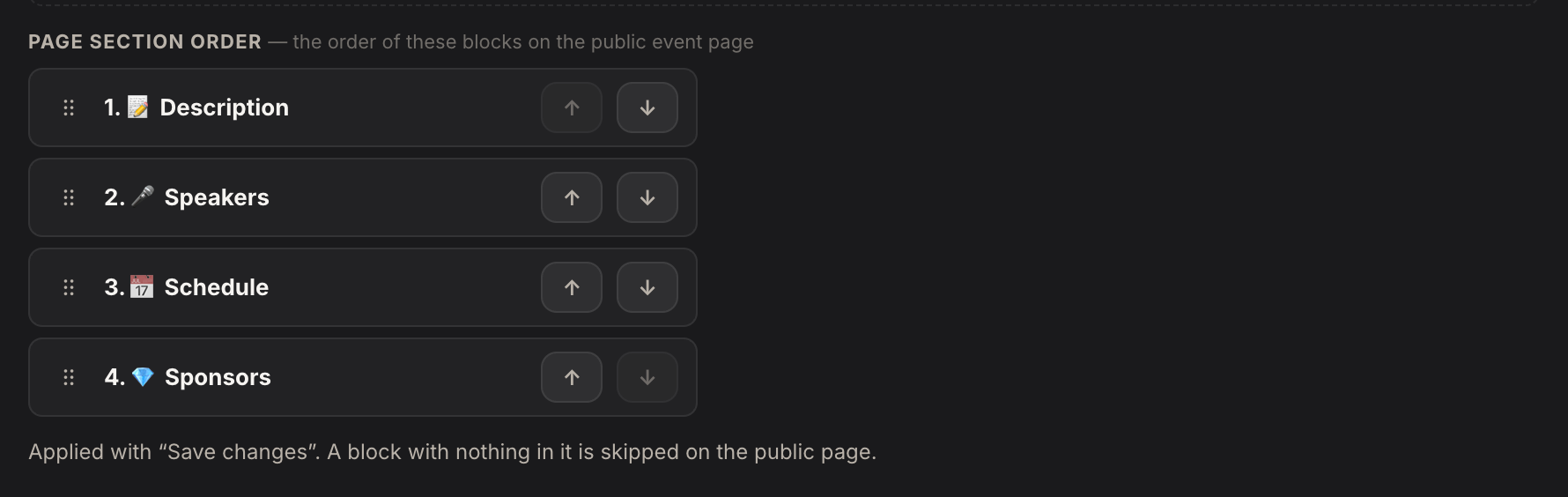
- Find Page section order on the 📋 Details tab.
- Drag the ⠿ grip, or click the arrows, to move 📝 Description, 🎤 Speakers, 📅 Schedule or 💎 Sponsors up or down.
- Click Save changes.
A section with nothing in it does not show on the page. If you never set an order, the page shows Description, Speakers, Schedule, then Sponsors.
Move the event to another chapter
- Select a chapter in Chapter.
- Click Save changes.
You can move an event only to a chapter that you captain. Admins can move an event to any chapter. If you captain no other chapter, the field is locked and says "To move this event, you need captain access to another chapter."
Good to know
- Images should be square, about 1000 × 1000 pixels. JPG, PNG, WebP or GIF, up to 5 MB. For a file over 2 MB the site asks you to confirm. Click Upload Anyway to continue.
- Paragraph alignment is on the 📝 Description tab. It aligns the selected text in the full description to the left, center or right.
- Hosts are on the 📋 Details tab too. See Hosts.
- Speakers, schedule and sponsors have their own pages: Speakers, Schedule and Sponsors.